
The Offerandum guide
Quote calculator for WordPress: setup step by step
You can embed an Offerandum quote calculator on your WordPress website. Our team prepares it from your company's price list, product options, and surcharge rules. You check the estimates and approve the result. Then you or your website administrator place the finished calculator on a service page using the code from the panel.
What customers can estimate on your website
The calculator guides visitors through the product or service options you offer and calculates a result using your rules. For a custom sauna, the choices might include dimensions, wood, glazing, heating, and installation. Customers describe what they want while the calculator applies the relevant rates. They do not need to understand the formulas in your internal spreadsheet.
Try the custom sauna example below. Choose an indoor or outdoor sauna, enter dimensions, and change a material. Review whether the selections describe a package your sales team could discuss with a buyer. The example demonstrates the experience; your own calculator would use the products, options, and rates your business actually offers.
Try it yourself
Custom saunas
The displayed result can reflect the limits of an online estimate. If the customer provides approximate measurements or you need to inspect the installation area, we agree on how to explain that in the result. Depending on your process, the calculator can show an amount, a range, a starting price, or collect the scope for a personal response.
After submission, your company receives the customer's contact details and selections. This gives your team a specific configuration to discuss. Completing the calculator does not confirm site conditions or reserve an installation date; those details remain part of your follow-up.
What to send us before we build the calculator
Start with the price list you currently use. It can be an Excel spreadsheet, a PDF, or a photo of a pricing document. If you have several versions, identify the current one. Add the information the document leaves out: what the base package includes, when a surcharge applies, and which requests always need an individual estimate.
For a sauna business, the materials could include:
- Product types: indoor and outdoor saunas, available designs, and size limits.
- Equipment: wood choices, front panels, heaters, and optional accessories.
- Pricing rules: the base package and how you price larger dimensions, material changes, and equipment upgrades.
- Installation and delivery: included work and charges for distance, access, or site preparation.
- Company materials: your logo, contact details, and product photos for the presentation.
- Reference estimates: a standard package and a package with upgrades, with the expected results from your price list.
Explain the units your team uses. A rate per square foot means something different from a rate per cubic foot, and the customer needs to know which dimensions to enter. For a percentage surcharge, specify which subtotal it applies to. If two options cannot be ordered together, identify that restriction alongside the choices.
You do not need to write a software specification. We need enough information to reproduce the way your team prices an order. A worked example is especially useful when a rule normally lives in a salesperson's notes rather than in the spreadsheet.
What Offerandum prepares and what you approve
Using those materials, the Offerandum team prepares the questions, available answers, and calculation rules. We also agree on the appearance, the way the result is presented, and the PDF quote. Where a product benefits from a visual explanation, the presentation can include photos, video, or a 3D model. The Offerandum plans describe the available options.
You review a working version before making it available to customers. Start with the reference estimates you supplied. Compare both the total and the included work. If installation covers selected equipment, the summary should describe that scope. If delivery is charged separately, the customer should be able to recognize it in the result.
Check the wording as well as the calculations. An internal material name may need a short explanation for a homeowner. Dimensions need clear units and instructions about what to measure. A choice that depends on a site visit needs wording that explains the later confirmation.
The person responsible for pricing should approve the estimates. Your website administrator can review the placement and page layout. If these are different people, collect pricing feedback from the estimator and website feedback from the administrator. Once the calculator matches your offer, it is ready to be placed on your WordPress site.
How to add the finished calculator to WordPress
You need a published calculator in the Offerandum panel and access to your WordPress page editor. You can place it yourself or send the code to the person who maintains your website. The embed displays the prepared calculator; the pricing rules have already been built by this stage.
- Open Home in the Offerandum panel and find the published calculator. Copy its website embed code using Copy code .
- Open the service page in WordPress and add a Custom HTML block. If you use Elementor, choose its HTML widget. Paste the complete code.
- Check that your website address is included in the allowed sites listed in the Offerandum panel. A staging address or a second domain must also be included if you want to use it there.
- Save and publish the page, then open its public address to see the result as a customer would.
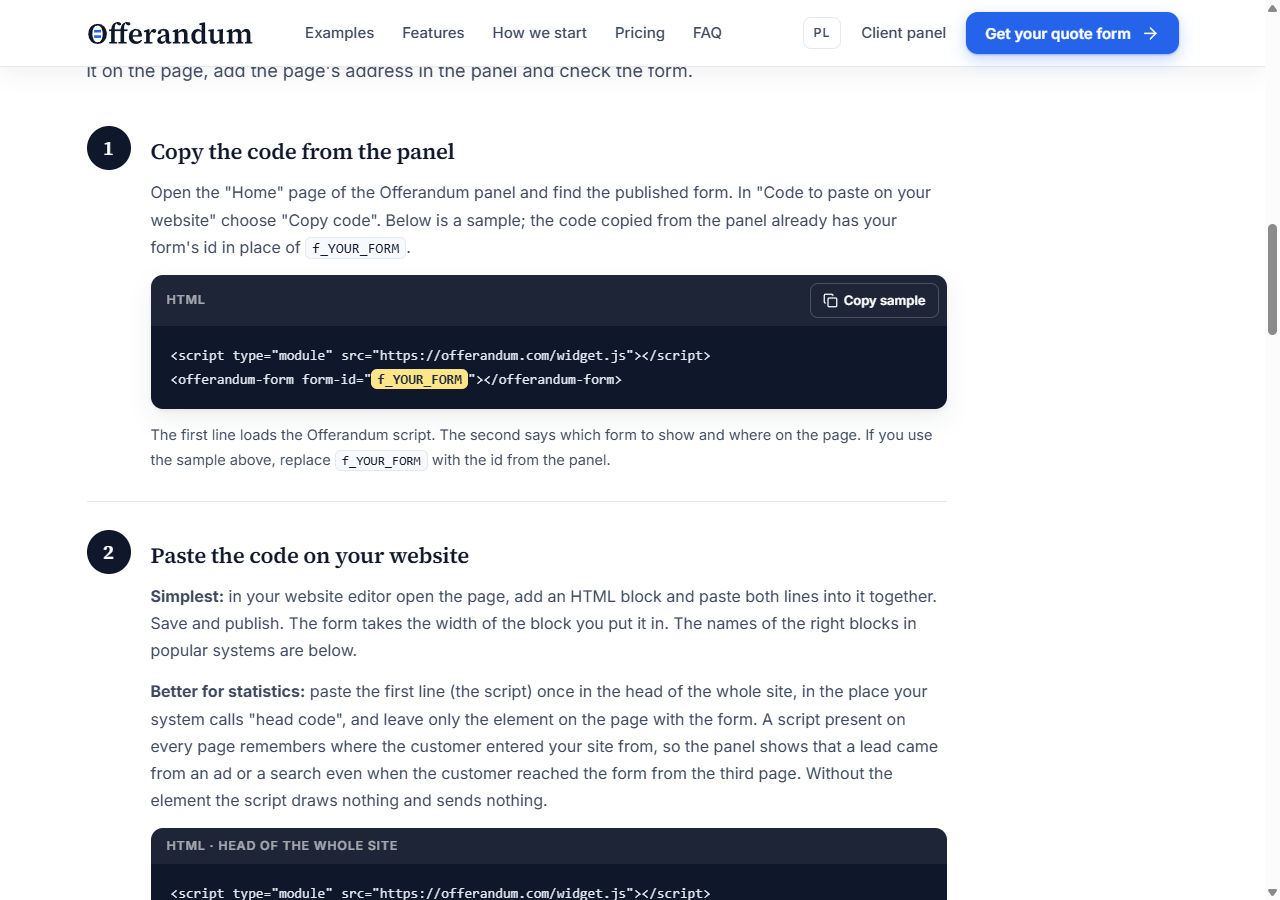
Both parts of the snippet are needed. Keep the calculator identifier unchanged and copy the whole snippet. If the editor removes the script when you save, ask your website administrator to check editing permissions and the site's embedding settings.
The WordPress installation guide covers editor details, site settings, and test submissions. Send that link to your website administrator together with the code and the address of the page where the calculator should appear.
Where to place it and what to check
Place the calculator beside the description of the relevant service. A visitor reading about custom saunas should understand that they can choose a sauna configuration and request an estimate there. A short introduction can explain what information they need, such as approximate room dimensions. Keep a contact option available for projects outside the listed choices.
Give the calculator enough width in the page layout. A narrow sidebar makes product descriptions and options harder to compare. On a phone, go through the steps to the summary. Check the photos, measurement labels, and back buttons. Seeing the first screen load is only the beginning of checking the customer experience.
Use the panel's test link for a trial submission. To test submission from the embedded calculator, follow the test setup in the installation guide and remove that setting afterward. Read the resulting email and open the PDF. Compare both with the selections you made on the page.
If something fails, report the actual symptom: a missing calculator, an image that does not load, an unreadable label, or an incorrect total. Include the public page address and your selections so the issue can be reproduced and assigned to the right person.
What happens after a customer submits a request
Offerandum sends your company the request with the customer's contact details, selected options, and PDF quote. The customer receives a document they can return to after leaving the website. Its scope and conditions should match the calculator result. The PDF quote overview explains the document in more detail.
For a sauna estimate, your salesperson can see the chosen design, dimensions, wood, heater, and installation scope. The next conversation can start with that configuration and the details still requiring confirmation. If the buyer changes a material, both sides can identify which part of the requested package has changed.
You can also handle requests in the Offerandum panel using statuses and notes. Decide who receives them and what happens next: a call, a scope check, or an appointment to inspect the space. A customer's preferred project date is information for that conversation, rather than an automatic booking for your crew.
Before launch, let the person who will answer customers review a test request. Check whether it contains enough information to begin a useful conversation. If something is missing, decide whether a customer can reasonably provide it online or whether it belongs in the later site visit.
Where to update prices after launch
Rates, surcharge thresholds, percentages, and minimums made available for your calculator are editable in the Offerandum panel. You do not need to open WordPress or paste the embed code again for each pricing update. The same embedded calculator remains on the page while your team maintains its pricing values in the panel.
For example, changing the delivery rate is a pricing update. Adding a new installation type with its own question and conditions requires a change to the calculator's logic. You arrange that extension with the Offerandum team. The price list panel overview explains the distinction.
After a change, check a configuration affected by it. For delivery pricing, compare an order within the included distance with one that incurs a surcharge. If the included service has changed too, update the relevant description so customers understand what the price covers.
To start, gather your current price list, available product options, and website address. If an agency maintains your site, identify the page where the calculator will go. These materials give us a basis for discussing your questions, calculations, and presentation.
Send us your price list and WordPress website address to discuss a calculator for your business.
Good to know
Frequently asked questions
Do I have to build the calculator myself in WordPress?
No. The Offerandum team prepares it from your price list, product options, and pricing rules. You review the working calculator, then embed it on your WordPress page using the code from the panel.
Can I send an Excel price list?
Yes. Include the standard package, surcharges, exceptions, and sample calculations with expected results. Explain any rules your sales team uses that are missing from the spreadsheet.
Will customers see a final price before a site visit?
We configure the result according to your pricing process. If measurements or installation conditions need checking, the calculator can present an estimate or a range and explain what still needs confirmation.
Do I need to edit WordPress whenever a rate changes?
You update the pricing values made available in your Offerandum panel without pasting the embed code again. Adding a new product option or a dependency requires a separate change to the calculator's logic.