
Installation guide
Connect your configurator to WooCommerce
The Offerandum plugin lets your configurator add a configured set of products to WooCommerce and report the resulting order to your panel. Shoppers use your store's checkout. This guide starts with a configurator already prepared for your catalog and product selection rules.
Before you install
You need an active WooCommerce store, access to the Offerandum panel, and a WordPress account allowed to install plugins and manage WooCommerce settings. Your catalog products and variants should have the SKUs agreed on during setup and current prices.
Installing the plugin does not turn an arbitrary quote form into a product configurator. We first connect the configurator's choices to the products, variants, and quantities your store sells. See how cart integration works for the full customer flow.
Download and activate the plugin
- In Offerandum, open Home , find your configurator, and locate Online shop alongside its embedding settings.
- Select WooCommerce (WordPress) as the platform and save. Check that the store's domain is on the configurator's allowed website list. Include your staging domain when testing there.
- Click Download the plugin (zip) . Keep the configurator ID handy and copy the Plugin key for that configurator.
- In WordPress, go to Plugins → Add New → Upload Plugin . Select the ZIP file, install it, and activate the plugin.
WordPress also documents the ZIP upload process .
Enter your configurator ID and key
Open WooCommerce → Settings → Offerandum . Add a configurator row and enter the ID and plugin key from Offerandum. Both values must belong to the same configurator.
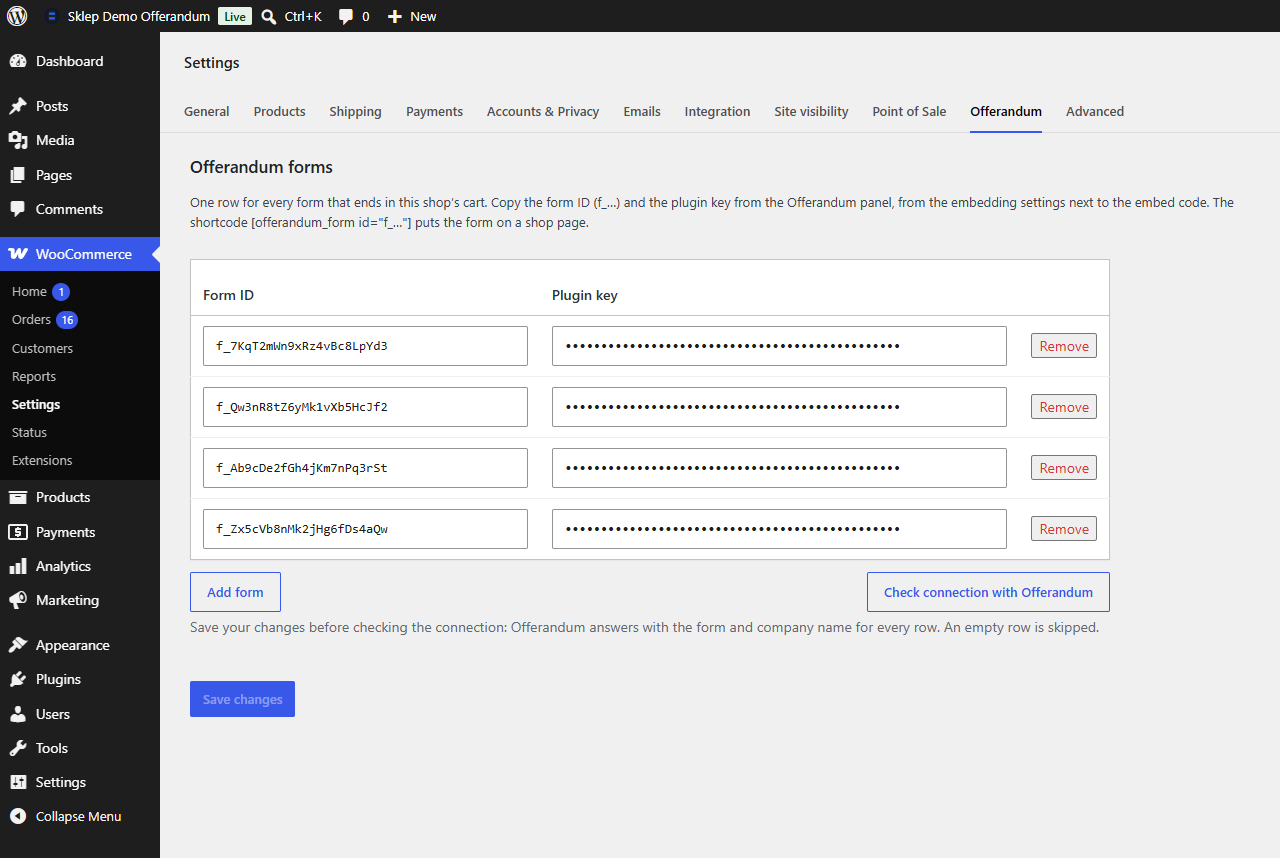
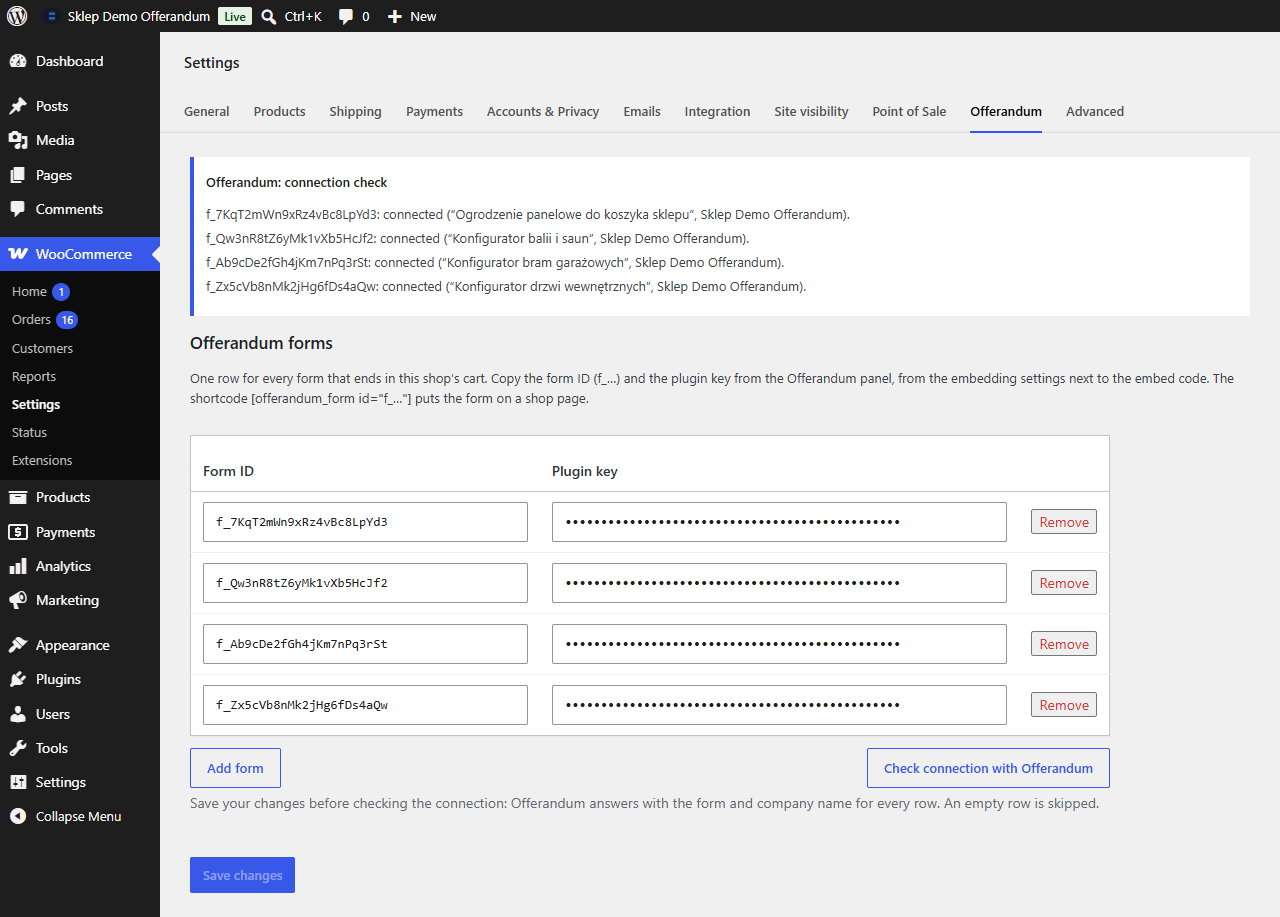
Save the settings, then click Check connection with Offerandum . A successful response lists the connected configurator and company name for every row. If the connection fails, check the values you pasted. Generating a new key in Offerandum invalidates the previous one, so update WooCommerce whenever you replace a key.
If your store runs a plugin that closes the WordPress REST API to visitors who are not logged in (for example Disable REST API, All In One WP Security, or Perfmatters), add an exception for offerandum/v1 in its settings. Without it, the configurator shows no store prices and cannot add products to the cart. The connection check warns you when the store turns these requests away.
Keep cart lead collection enabled in Offerandum if you want configurations recorded as leads and reported orders to mark them as won. You can turn it off and use the configurator solely to fill your store's cart.
Place the configurator on a store page
Add a Shortcode block in the WordPress page editor and paste:
[offerandum_form id="YOUR_CALCULATOR_ID"]
Replace YOUR_CALCULATOR_ID with the complete ID from Offerandum, beginning with f_ . Use the same ID you entered in WooCommerce settings. The plugin key stays in settings; it does not belong in the page content.
Publish or update the page. The shortcode loads the configurator with the WooCommerce cart connection and your store's cart URL. You do not need a separate HTML embed snippet. If you use a page builder, choose its shortcode element.
Test the path from selection to order
Open the store page on desktop and mobile. Use your store's staging environment or a test payment method arranged by your store administrator when checking the order flow.
- Configure a catalog product, including a variant and any accessories, then click Add to cart .
- Compare the cart's products, variants, and quantities with the expected set. The cart should use WooCommerce catalog prices.
- With cart lead collection enabled, find the configuration in Offerandum. It should appear as a cart lead before an order is placed.
- Place a test order from that cart. Check that the lead is marked as won and includes the reported order amount and customer details.
- Try a prepared custom option that has no catalog match. It should end with a quote request and contact fields.
If an item does not reach the cart, check its SKU, variant, and availability against the configurator's selection rules. If the cart works but the order does not reach Offerandum, check the plugin key, lead collection setting, and reporting notes on the WooCommerce order.
Keep the configurator aligned with your catalog
WooCommerce prices the cart from its own catalog. If the configurator displays an estimate before checkout, keep those rates aligned separately. The plugin does not automatically synchronize the configurator's displayed pricing.
Review affected configurations after changing your product range. A new component or a different selection rule may need a configurator update. To add another configurator, enter its ID and key in a separate settings row and use that ID in its shortcode.
Good to know
Frequently asked questions
I'm not sure how to install the plugin. Can you help?
Yes, we're happy to help. Contact us and we can walk you through the setup or install and configure the plugin in your store for you. You don't have to handle the installation yourself.
Where do I download the WooCommerce plugin?
Open Home in the Offerandum panel and find your cart-enabled configurator. The Online shop section includes the Download the plugin (zip) button.
Should I put the plugin key in the shortcode?
No. The shortcode only needs your configurator ID. Enter the plugin key beside that ID in WooCommerce → Settings → Offerandum.
Can one store use multiple configurators?
Yes. Add a settings row for each configurator with its own ID and plugin key. Use the matching configurator ID in each page's shortcode.
Why is an order missing from Offerandum?
Check that cart lead collection is enabled, the configurator ID and key match, and the plugin connection test succeeds. The order must contain items added through the configurator. WooCommerce order notes also show the result of the order report.
What happens when I generate a new plugin key?
The previous key stops working immediately. Replace it in the matching WooCommerce settings row, save, and run the connection test again.
// live demo
Want a form like this for your business?
I will show you live how it works from the company side: the panel, the leads and the PDF quote. Tell us what you quote and you get a link to pick a time by e-mail.
- Free, no strings attached
- You pick the time in the calendar
- Online meeting in Google Meet

I run the demo myself: you will see how a form like this would work in your business.
Damian Krychowski, founder of Offerandum